


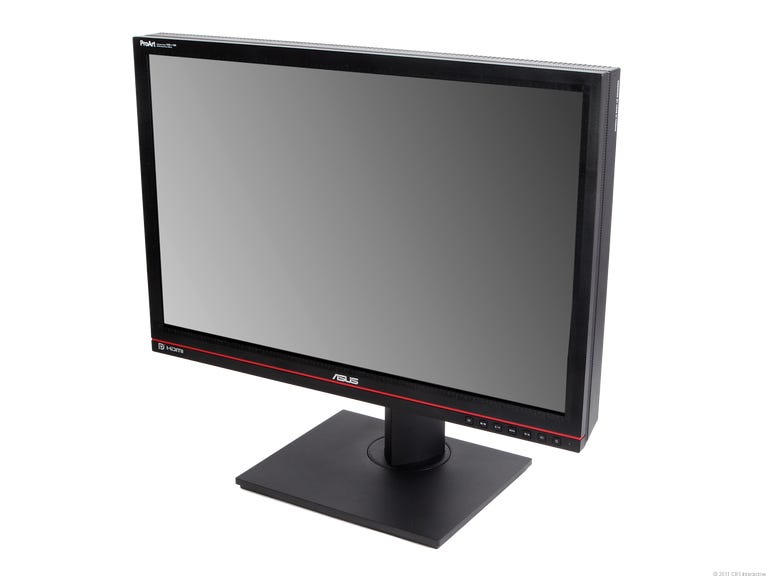
Asus PA246Q
The Good
The Bad
The Bottom Line

There are three distinct reasons to be excited about the Asus PA246Q. One, it's the first monitor we've had the opportunity to calibrate using a new tool (some details below); two, it's the first 24-inch-plus monitor with a high-end P-IPS panel we've reviewed that costs less than $500.
Finally, the graphical overlay feature may be the most original monitor option I've encountered in more than three years of writing monitor reviews. Essentially, the feature places one of a number of different grid and photo size options on the screen, allowing for increased precision when tailoring graphics or printing photos.
Anyway, keep reading to see if the above-mentioned features were just a cheap bid for attention or if the PA246Q is worth the relatively small amount of cash Asus is asking for.
Design and features
In the top-left corner of the 24-inch Asus PA246Q's chassis, written in white text, is the word "ProArt." If there was any ambiguity about the type of user Asus is targeting with this monitor, this small design touch should abolish it. Like most "Pro" monitors, the PA246Q houses a Professional In-Plane Switching (P-IPS) panel. This makes for a monitor with more girth than the comparatively small Twisted Nematic (TN)-based displays, which aren't as suited for professional art tasks. The P-IPS panel, with its Cold Cathode Fluorescent Lamp (CCFL) backlight, measures a deep 3.2 inches in depth.
The bezel is 0.75 inch on the left and right sides with the full width of the panel checking in at 22 inches. Aligned along the bezel are numberless, rulerlike measurement notches that we can safely say we've never seen on a monitor before. This precision motif continues at the base of the display's neck where a circular dial resides with measuring notches arranged along its perimeter. No numbers appear on the dial, but there is an arrow above it that acts as a measurement guide and allows for precise swiveling of the panel.

Speaking of which, the monitor can swivel 60 degrees left and right, tilt back 20 degrees, and pivot 90 degrees, and its screen height can be adjusted by 4 inches. The foot stand is fairly flat, is close to square in shape, and measures 11 inches wide by 9.25 inches deep. Even given this wide foot stand, the display wobbles quite a bit when knocked from the sides.
The build quality of the boxy, dark-gray chassis feels quite substantial--a surprising impression, given that the PA246Q weighs 17 pounds, whereas other 24-inch IPS monitors typically weigh 20 pounds or more.
Along the monitor's left side, aligned vertically, are two USB downstream ports and a multimedia card reader. Back connections include DVI, DisplayPort, VGA, HDMI, USB upstream, and a headphone jack. There's also a power switch, hidden away on the right side. While this provides us one each of the fab four of video connections, we could have used a few more duplicates of connection options.
The onscreen display (OSD) array consists of six buttons including Quickfit, a preset shortcut, a down button, an up bottom, a Menu button, and an Enter button. The buttons are separated from each other by a button's width of space and all emit a satisfying pop when pressed.
Navigating the OSD takes a little while to get the hang of, but fortunately, it includes contextual icons to steer you in the right direction. The OSD features Standard, sRGB, Adobe RGB, Scenery mode, and Theater mode presets, plus an additional customizable User Mode. Also included are brightness, contrast, saturation, hue, gamma, and advanced color settings including six-color hue and saturation adjustment controls and direct RGB color control using gain and offset. Rounding out the more useful options are sharpness and aspect ratio control, picture-in-picture (PIP) settings, and system setup options such as OSD window placement and duration onscreen.
By far the most unusual feature in the PA246Q's already considerable assembly of OSD options is Quickfit. Pressing the Quickfit button places an overlay on the screen of your choice of either grid patterns (of various dimensions) or paper and photo sizes. With the grid patterns you can more precisely and consistently organize content on a page when, say, designing graphics for the Web.

The paper and photo sizes would show exactly what papers and photos will look like once printed. This one seems less useful, as any self-respecting graphic artist would probably already be using Photoshop or some other program to do this. Still, it's a unique option that some will get more out of than others.
